
Using your TopexCard with mobile wallets like Apple Pay and Google Pay allows you to make fast, secure, and contactless payments directly from your smartphone.
Instead of carrying a physical card, you can store your TopexCard digitally and use it anywhere mobile payments are accepted, in stores, apps, and online.
The setup process only takes a few minutes and is required just once. After that, you can enjoy seamless payments anytime without re-entering your card details.
This guide will walk you through each step, from accessing your card details in the TopexCard app to completing verification and making your first payment.
Prepare Your TopexCard for Mobile Payments
Before adding your TopexCard to your mobile wallet, make sure you have everything ready to complete the process smoothly:
- An active TopexCard account in the mobile app
- Access to your card details (card number, expiry date, and CVV)
- A compatible device:
- iPhone for Apple Pay
- Android device for Google Pay
- A stable internet connection
- Access to your registered email address for verification
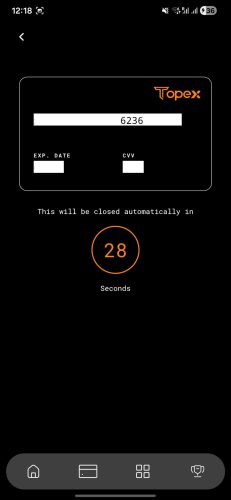
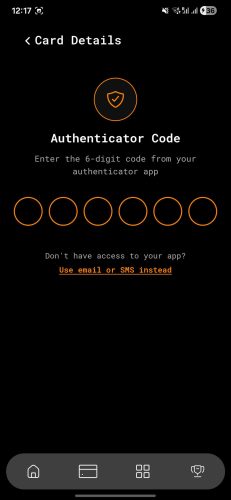
Your card details can be securely viewed inside the TopexCard app. You may need to complete a quick authentication step to access them.
Add Your TopexCard to Apple Pay and Google Pay
Adding your TopexCard to your mobile wallet allows you to make fast, secure, and contactless payments using either Apple Pay on your iPhone or Google Pay on your Android device. Once added, you can use your phone for in-store purchases, in-app payments, and online transactions, without needing your physical card.
Here’s a step-by-step guide to add your TopexCard to either Apple Pay or Google Pay:
Step 1: Open the TopexCard App and Get Your Card Details
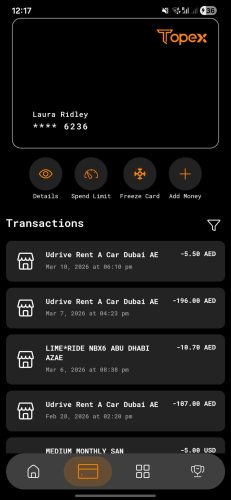
Log in to your TopexCard app and navigate to your card section. Make sure you have the following information ready:
- Card number
- Expiry date
- CVV
These details will be required to add your card to your mobile wallet.
Step 2: Open Your Mobile Wallet
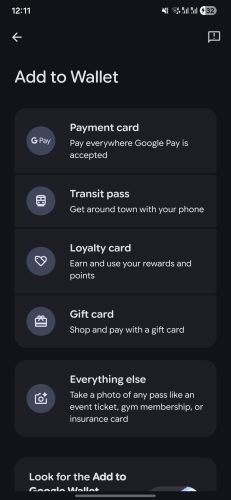
To add your TopexCard, open your mobile wallet app and tap the Add Card option:
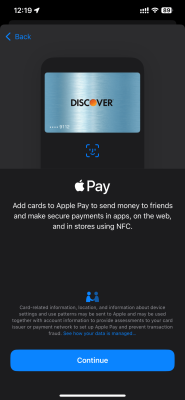
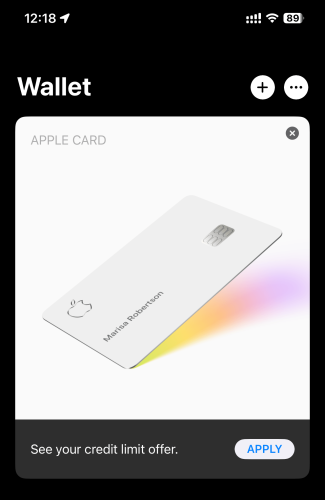
- Apple Pay: Open the Wallet app on your iPhone and tap Add Card
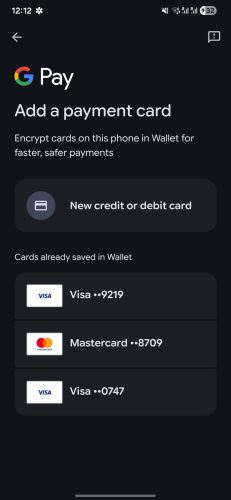
- Google Pay: Open the Google Pay app on your Android device and tap Add Card
This step initiates the process of linking your TopexCard to your device, allowing you to make fast, secure, and contactless payments.
Step 3: Enter Card Details Manually
Select the option to enter card details manually and input your TopexCard information exactly as shown in your app (Card number, Expiry, CVV).
Step 4: Review and Accept the Agreement
You will be shown the card agreement. Carefully review the terms and tap Accept to continue.
Step 5: Verify Your Card
A One-Time Password (OTP) will be sent to your registered email. Enter the code in the wallet app to complete verification.
Once the OTP is confirmed, your TopexCard will be successfully added to your mobile wallet and ready for use.
Confirm Your Card with a Verification Code
For security purposes, every card added to Apple Pay or Google Pay must be verified.
When adding your TopexCard:
- A One-Time Password (OTP) is sent to your registered email
- The code is valid for a limited time
- It can only be used once
This step ensures that only the card owner can activate the card in a mobile wallet. If you do not receive the code:
- Check your spam or junk folder
- Wait a few moments and try again
- Request a new code if needed
Start Paying with TopexCard
Once your card is successfully added, you can start using it immediately. You only need to complete this setup once. After that:
- No need to re-enter card details
- No need to verify again for each payment
To make a payment:
- Hold your phone near a contactless payment terminal
- Authenticate using Face ID, fingerprint, or PIN
- Your payment will be processed instantly
You can use your TopexCard for:
- In-store contactless payments
- In-app purchases
- Online transactions
Fix Any Issues Quickly and Easily
If you experience issues while adding your card, try the following:
Card details not accepted
- Double-check that all information is entered correctly
- Make sure you are using the details from your TopexCard app
OTP not received
- Check your email inbox and spam folder
- Ensure your email address is correct
- Request a new code
Card not added
- Update your Apple Pay or Google Pay app
- Restart your device
- Try adding the card again
If the issue persists, contact TopexCard support through the app.
FAQ
Do I need to repeat this process for every payment?
No. You only need to add your card once. After setup, you can pay anytime using your phone.
Can I add my card without a physical card?
Yes. You can use the card details available in the TopexCard app.
What happens if I change my phone?
You will need to add your TopexCard again on your new device.